· Now
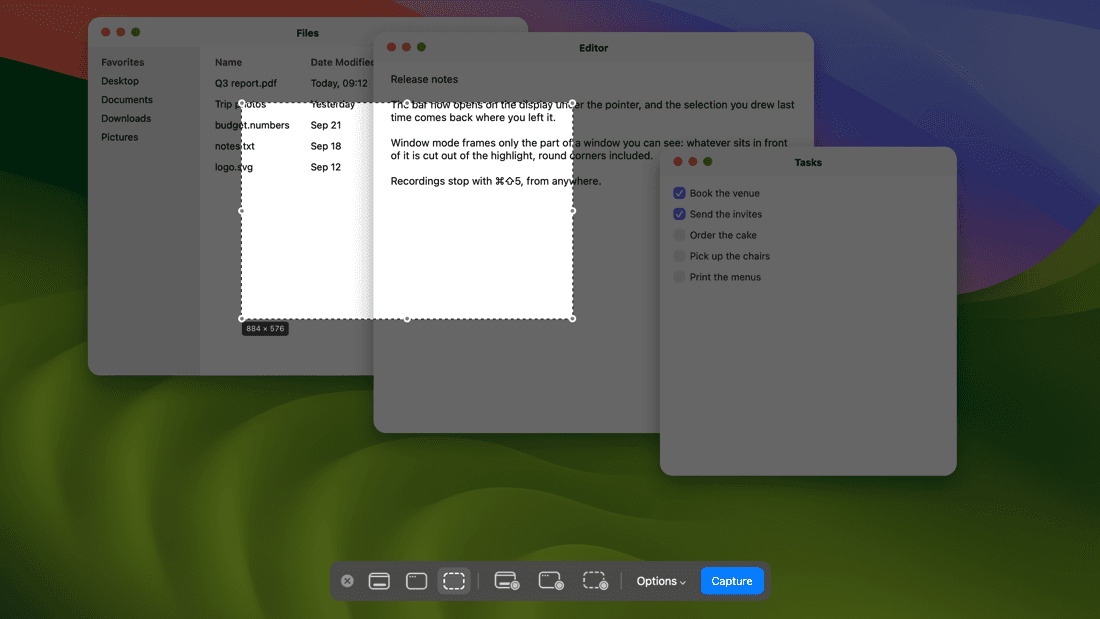
Press ⌘⇧5. The screen freezes and dims, the bar comes up at the bottom, and you pick what to take: the entire screen, a window, or a portion you drag out — as a still or as a recording. The file is on disk the moment you click, not five seconds later. A thumbnail then sits in the corner for eight seconds, to pin, delete or drag away. It runs as a LaunchAgent with nothing in the menu bar, and only answers ⌘⇧5.
- Three targets, each drawn its own way. Entire Screen keeps everything dimmed inside a white frame that follows the display's round corners. Selected Window does not dim: the window under the pointer turns light blue in a white frame, and the highlight stops where another window sits in front of it. Selected Portion dims everything but the box you drag, with its handles and its size in pixels.
- Hovering a button names its mode at once, with none of a tooltip's delay, and the bar keeps one width whether its button reads Capture or Record.
- Everything has a key. ⌘← and ⌘→ step through the modes, the arrows nudge the selection — ⇧ by ten, ⌥ resizes — Return takes it and Escape closes. ⌘⇧5 again flips between still and recording, and stops a recording that is running.
- After the shot a thumbnail sits in the corner for eight seconds: its left half pins, its right half deletes, a drag takes the file with it. A pinned capture stays in the top-right corner — a click copies it, a double click opens the file, a right click unpins it — always as a 16:9 card, the picture centred on black, never taller than it is wide.
- Save to takes several destinations at once: Desktop, Downloads, Documents, the clipboard, another folder. Every setting in the Options menu is also a defaults write.
- An agent with no window is a candidate for automatic termination, which is how it once “crashed” without a crash report; it now tells the system it is listening for a hotkey. And two copies — a login item next to the LaunchAgent — would both take ⌘⇧5 and stack two overlays, so the newer one leaves.
- The pictures are drawn by the app's own views, offscreen, over a stock wallpaper and stand-in windows. One command redraws them, and no real window is ever in a picture.
- Swift on the Command Line Tools alone, no Xcode.